Workflow
The WorkFlow tab is structured in several STAGES according to the normal workflow of a radiotherapy unit:
Consultation / Simulation / Contouring OaR / Contouring Volumes / Treatment Definition / Dosimetry / Treatment Verification / Treatment Delivery.
Consultation
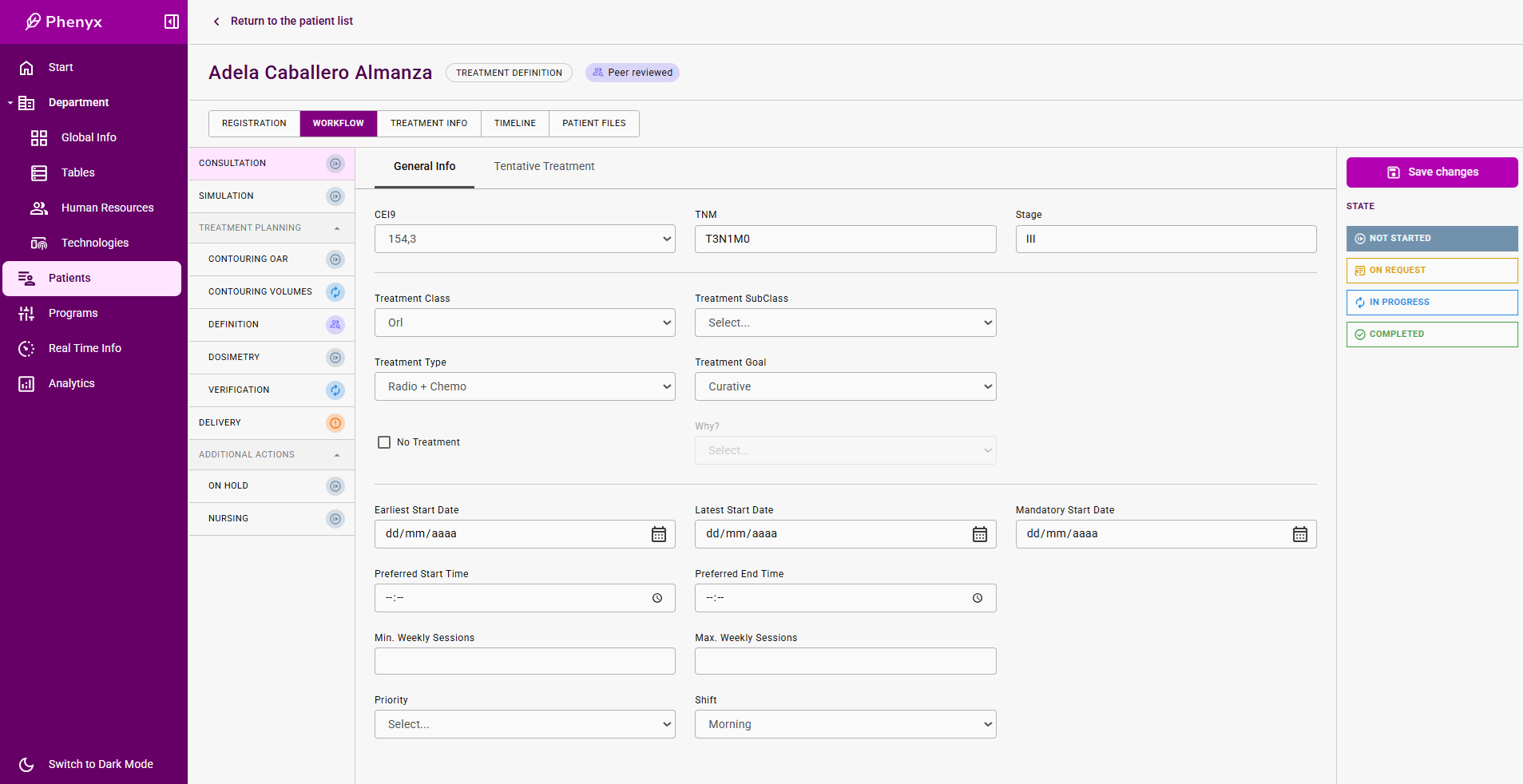
The first stage is the Consultation stage whose info is divided into two sections: General Info and Tentative Treatment.
The HHRR-group in charge of managing the info in this stage is the Radiation Oncologist.
General Info
The first block of data in this section has to do with the diagnosis and the general aspects of the proposed treatment.
- CEI 9
- TNM
- Stage
- Treatment Class
- Treatment SubClass
- Treatment Type
- Treatment Goal
- No treatment + Explanation
The second data block has to do with scheduling options and preferences:
- Earliest Start Date
- Latest Start Date
- Mandatory Start Date
- Preferred Start / End Time
- Minimum Weekly Sessions
- Maximum Weekly Sessions
- Priority
- Shift
Tentative Treatment
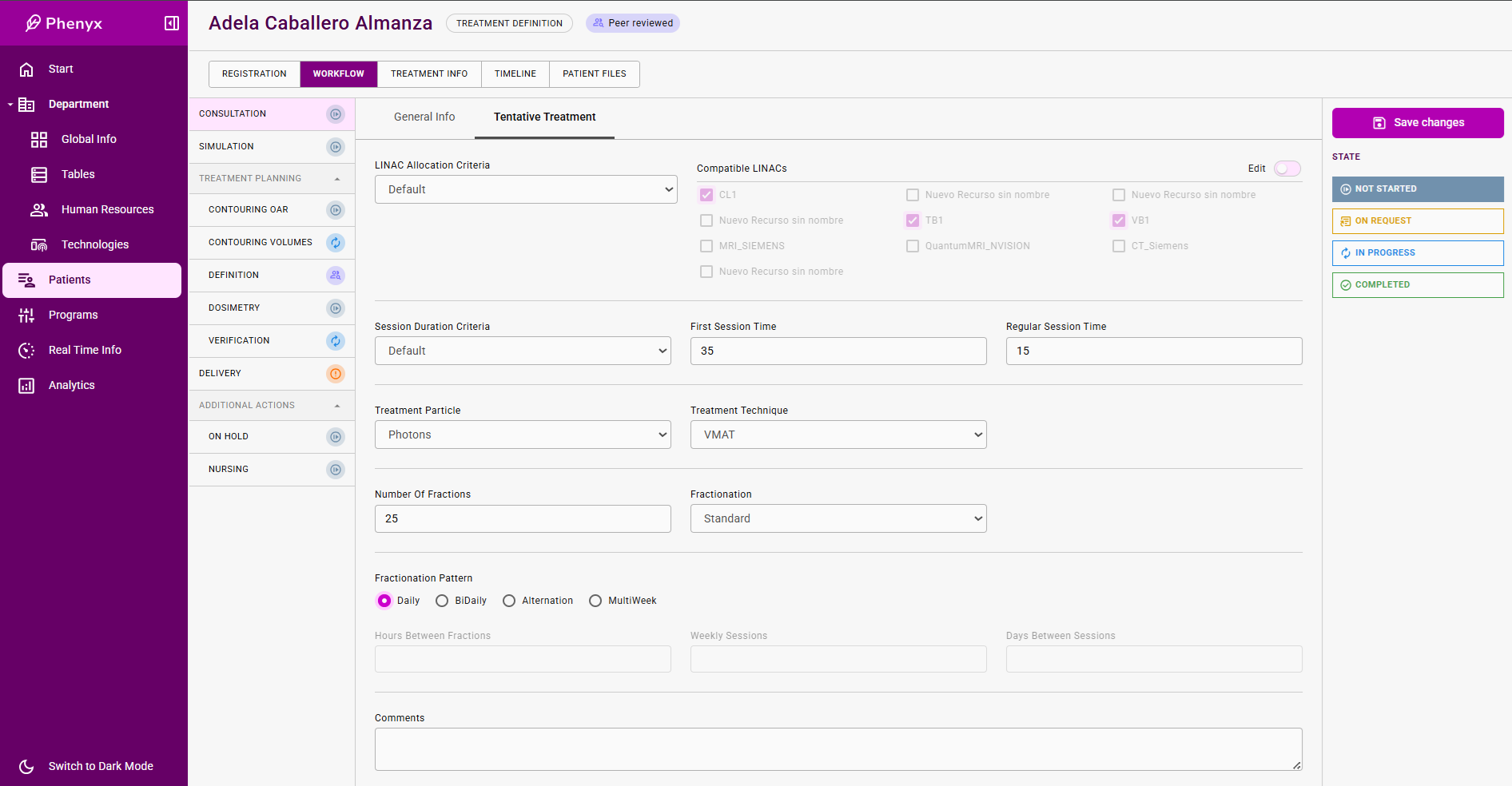
In this section, more data regarding the proposed treatment is provided. This data will be confirmed/modified in the Treatement Definition Stage.
- LINAC Allocation Criteria. When filling this field, compatible LINACs will be automatically filled according to the corresponding LINAC allocation table. List of compatible LINACs can be edited by activating the corresponding toggle.
- Session Duration Criteria. When filling this field, duration of both first and regular sessions will be automatically filled according to the corresponding Session Duration Table. Edition of the proposed data is possible.
- Treatment Particle
- Treatment Technique
- Number of Fractions
- Fractionation
- Fractionation pattern
- Daily
- Daily-twice (former BiDaily). In this case, extra info is needed:
- Hours Between Fractions
- Alternation
- MultiWeek. In this case, extra info is needed:
- Weekly Sessions
- Days Between Sessions
STATUS definition
-
Not Started: RadOnc has not started the first consultation yet.
-
In Progress: Status is updated to In Progress by RadOnc when receiving the patient in the first consult. Normally, status will be updated to Completed by the end of the consult, but might be kept In Progress for any reason and updated to Completed afterwards.
-
Completed: Status is updated to Completed by RadOnc when all info is provided.
TODO Section
- Remove the ON REQUEST status
Simulation
The Simulation stage includes all the imaging activities needed to define the treatment of the patient. Usually, this imaging activities requires the utilization of technology resources such as TC, MRI or PET.
Thus, this stage is split into three sections:
- Resources Definition
- Resources Scheduling
- Imaging
Resources Definition
This section is to be filled by the RadOnc and its aim is to request an appointment on a given imaging resource.
Several imaging processes might be requested for one patient. All of these processes will follow the same logic.
- Add Resource.
- RadOnc add a new resource and fills the type of imaging technique. More info regarding imaging protocol, preferred dates and general commments may be added.
- Press Request.
- This action changes the status of the Resource to Pending and creates a request on the Resource Scheduling Section.
- Wait until the request is handled and Confirmation is send back.

Resources Scheduling
This section is aimed to be handled by administrative staff, dealing with the agendas of Imaging Assets.
When receiving a Request form step 2 in the Resources Definition, staff will link to the corresponding agenda in Real Time Info. After assigning a tentative time slot on a given day, the appointment should be confirmed to both update the status of the request and send the appointment to the patient via the external appointment system.
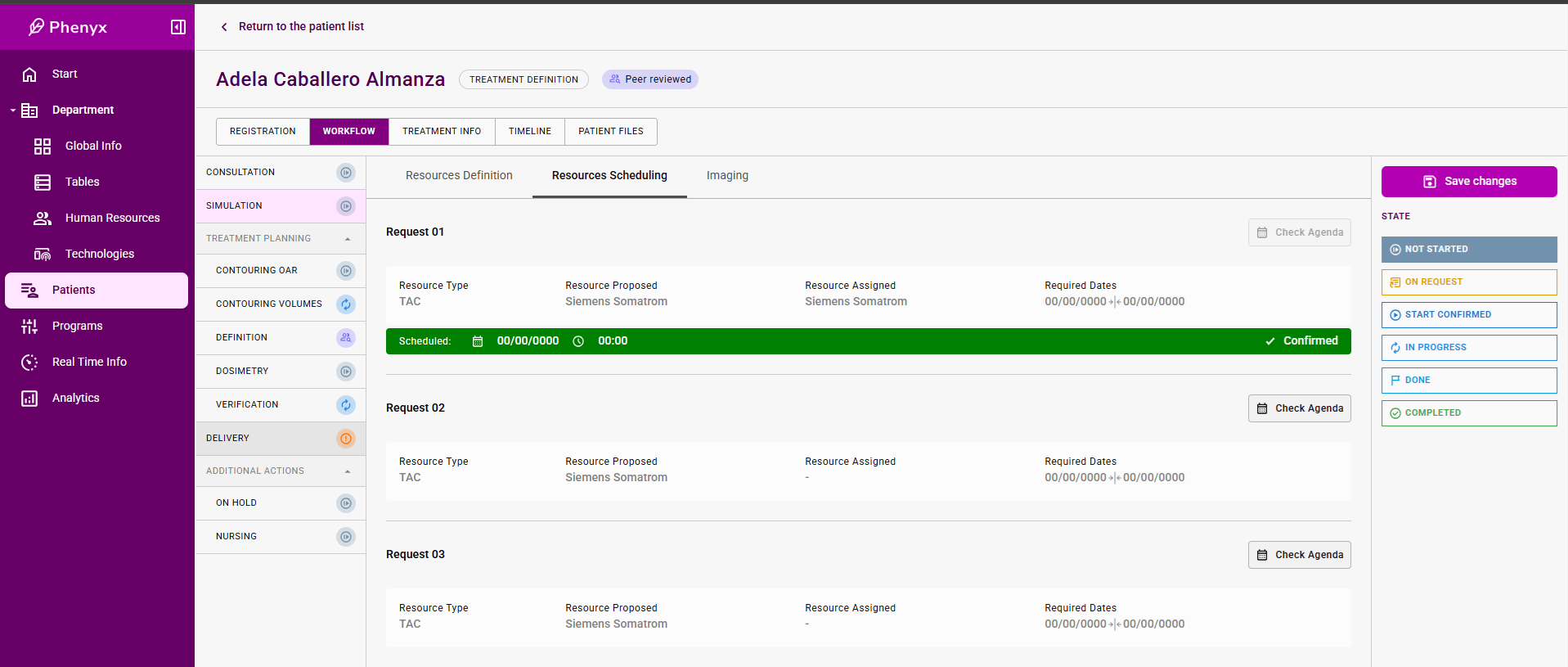
STATUS DEFINITION
-
Status : Consider to allow that OnRequest and Start Confirmed can be active simultaneously.
- On Request: While one request is not confirmed.
- Start Confirmed: When one request is confirmed.
-
DONE: When all Imaging process
-
ANOTHER OPTION: Remove OnRequest and StartConfirmed. Add InProgress. This InProgress status will be active from the firs Resource-Request to the last Resource-Done.
TODO section
- Remove In Progress (depending on former decision)
- Add Done for each Request.
- Connections with agendas and events of confirmation.(confirmed / assisted(done))
- How to modify a confirmed appointment. Let the agenda be the master, and if the appointment is modified and confirmed, info in Resources Scheduling will be modified ???
Treatment Planning
Treatment planning is a global task that is made up of a series of stages aimed at defining the radiation treatment that the patient will receive.
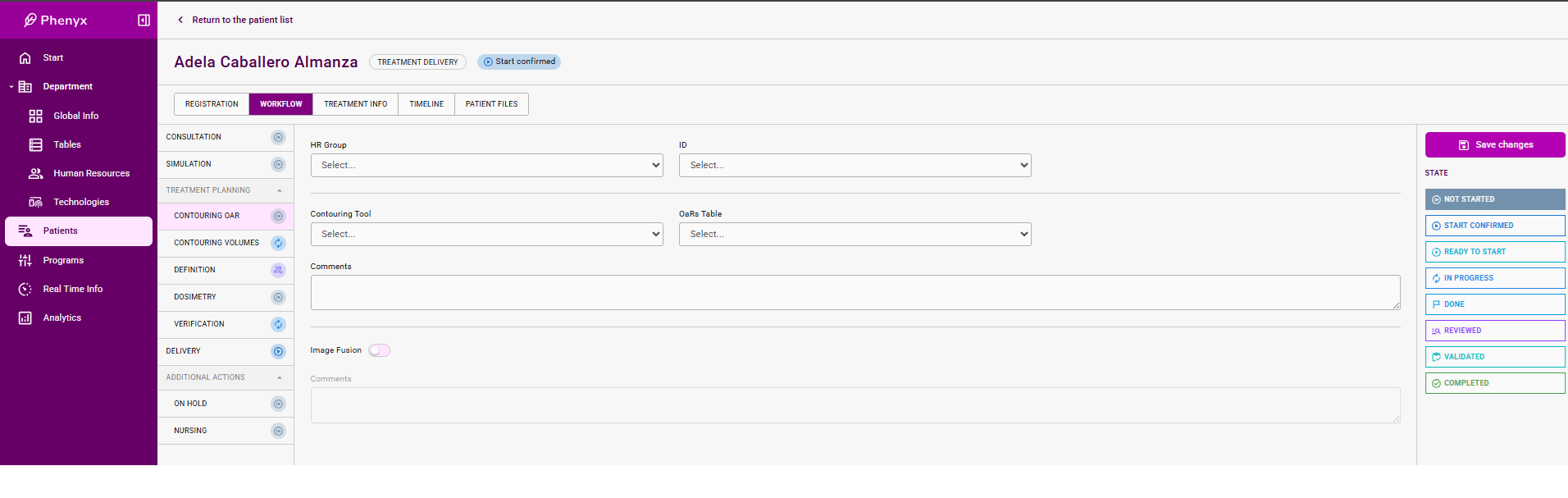
Contouring OaR
The first action is to defined who will be in charge of this stage. Thus, ¿MedPhys? selects the HR Group and the particular ID.
Status definition
- Not started
- Ready To Start: Contouring OaR is in this status when all the required imaging tasks have been completed. Thus, the update to this status might be done automatically when simulation/imaging is completed.
- In Progress: Automatically updated when both HR Group / ID have been filled. It means that the stage is In PRogress when has been assigned to one HHRR.
- Done: Updating to this status is done manually when the assigned HHRR finishes the job.
- Reviewed Updating to this status is done manually when the responsible (MedPhys ??) finishes revision.
- Validated Updating to this status is done manually when the responsible (RadOnc ??) finishes revision.
- Completed Updating automatically when Validated.
TODO section
- Remove the Start Confirmed status.
- Add MedPhys ? Add MedPhys responsible in the Consultation stage?
Contouring Volumes
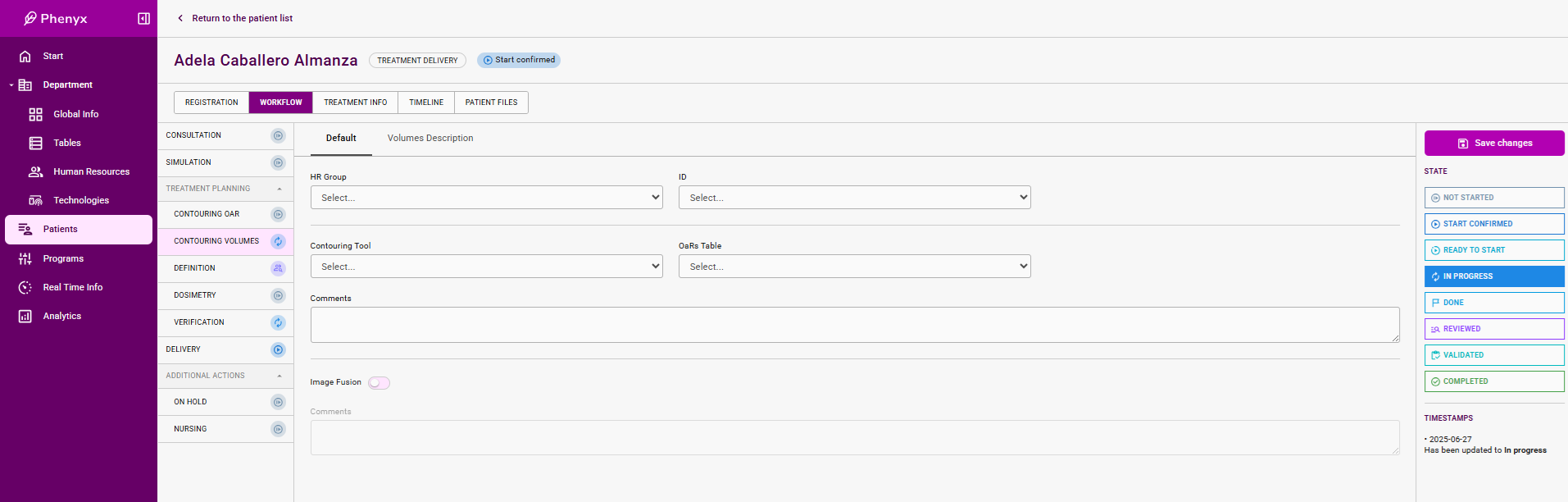
This stage is made up of two sections: Info and Volumes Description.
The first section is equal to the one in Contouring OaR.
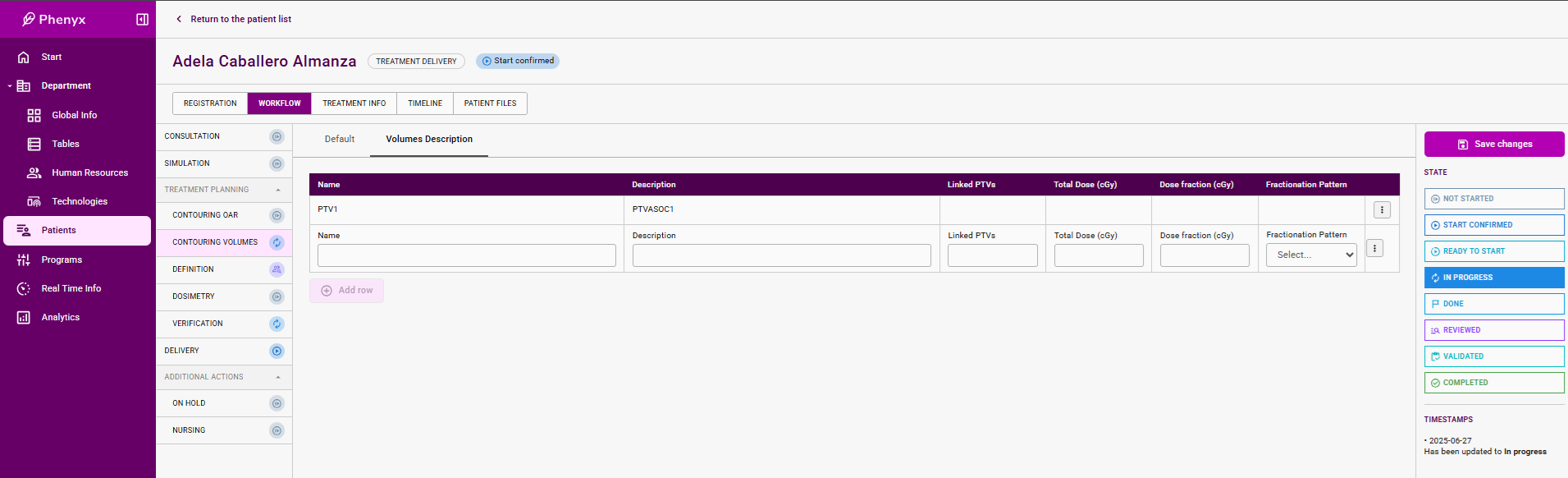
The second section is an editable table aimed at defining the volumes to be radiated and their corresponding doses.
Status definition
- Not started
- Ready To Start: Contouring OaR is in this status when all the required imaging tasks have been completed. Thus, the update to this status might be done automatically when simulation/imaging is completed.
- In Progress: Automatically updated when both HR Group / ID have been filled. It means that the stage is In PRogress when has been assigned to one HHRR.
- Done: Updating to this status is done manually when the assigned HHRR finishes the job.
- Reviewed Updating to this status is done manually when the responsible (MedPhys ??) finishes revision.
- Validated Updating to this status is done manually when the responsible (RadOnc ??) finishes revision.
- Completed Updating automatically when Validated.
TODO section
- Change the name of Default section. New name = Info
- Remove Start Confirmed status.
Treatment Definition
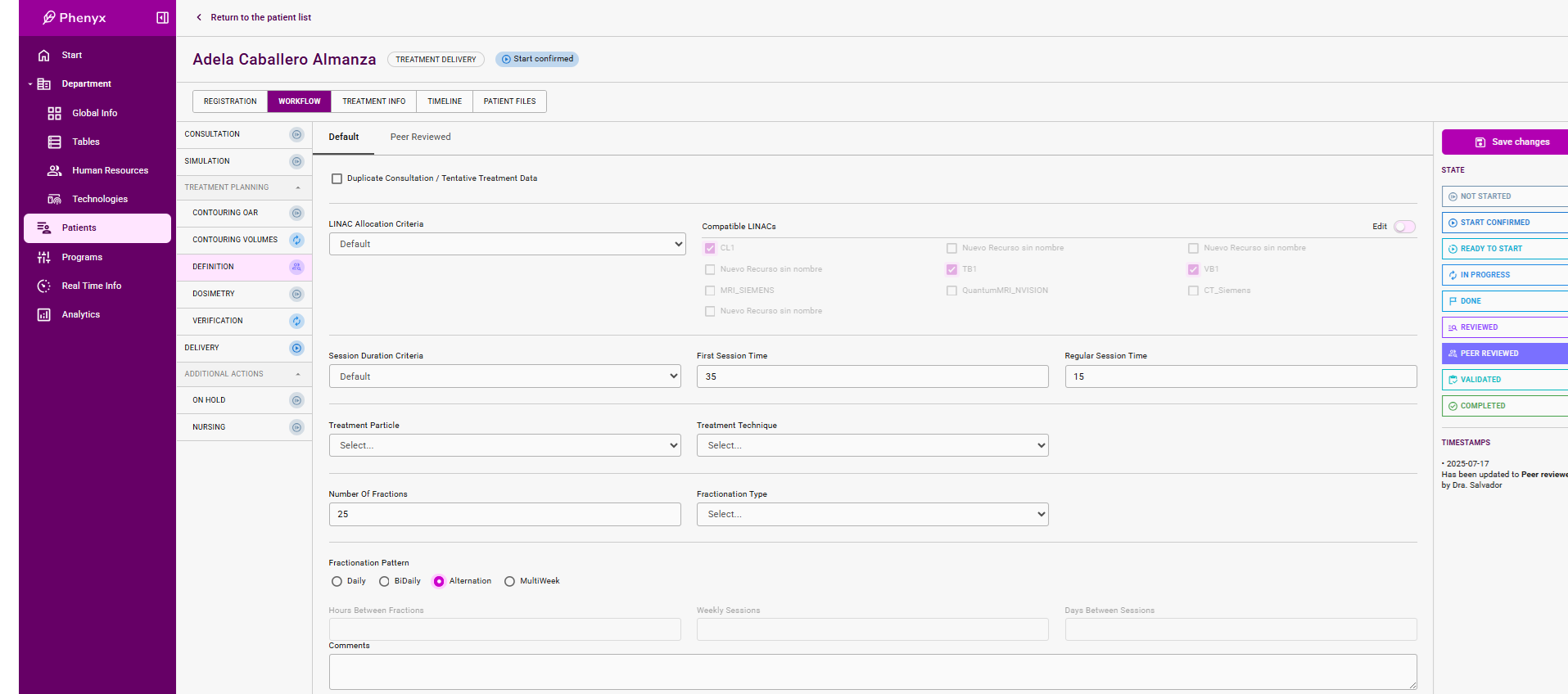
This stage is made up of two sections: Info and Peer Review.
The info section is equal to Consultation / Tentative Treatment. In fact, the firs check allows to copy exactly the info provided in the Consultation stage. However, edition of all field at this stage in order to handle more updated treatment decisions.
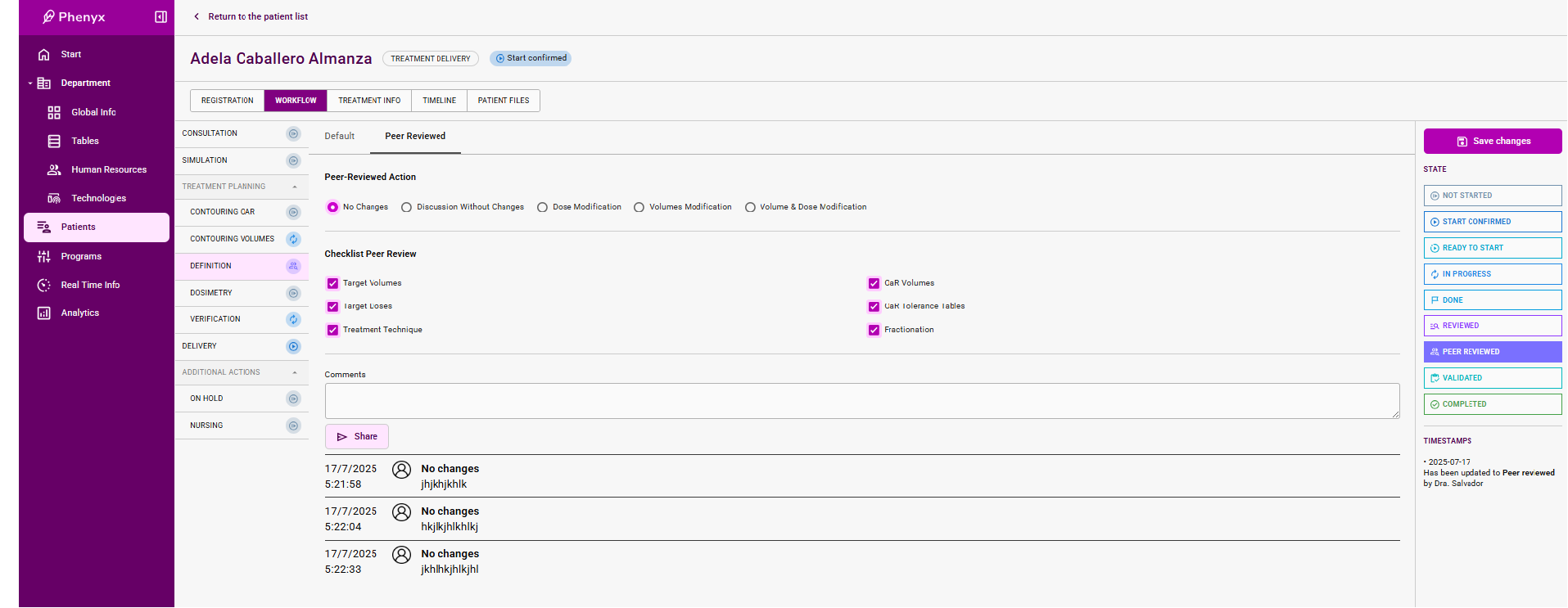
The peer review section is aimed at providing a guide and a playground for exchanging opinions. As a result, the final decision regarding the treatment is also marked and saved.
Status definition
- Not started
- Ready To Start: Definition is in this status when all the contouring tasks have been completed. Thus, the update to this status might be done automatically when both Contouring_OaR and Contouring_Vol are completed.
- In Progress: Manually by RadOnc.
- Done: Manually by RadOnc.
- Reviewed Manually by RadOnc.
- Peer-Reviewed Manually by Peer-RadOnc.
- Validated Updating to this status is done manually when the responsible (RadOnc ??) finishes revision.
- Completed Updating automatically when Validated.
TODO section
- Change the name of Default section. New name = Info
- Change the name of Peer Reviewed section. New name = Peer Review.
- Remove Start Confirmed status.
- Add the same modifications as in Consultation / Tentative Treatment.
- Define the process of choosing the HR that will perform the Peer Review and how to notify him/her.
Dosimetry
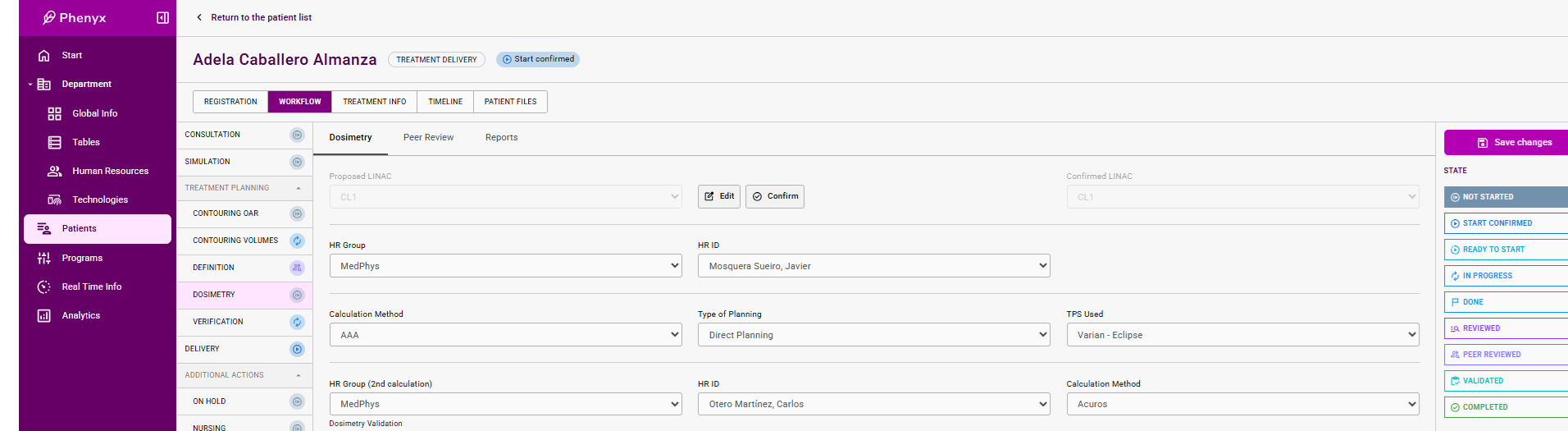
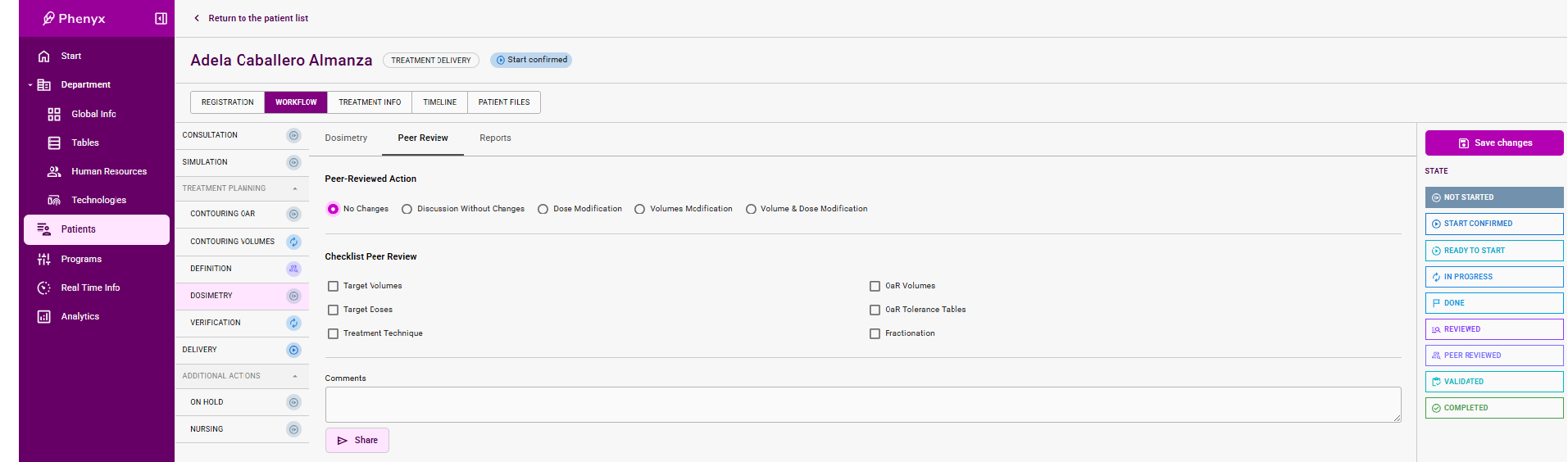
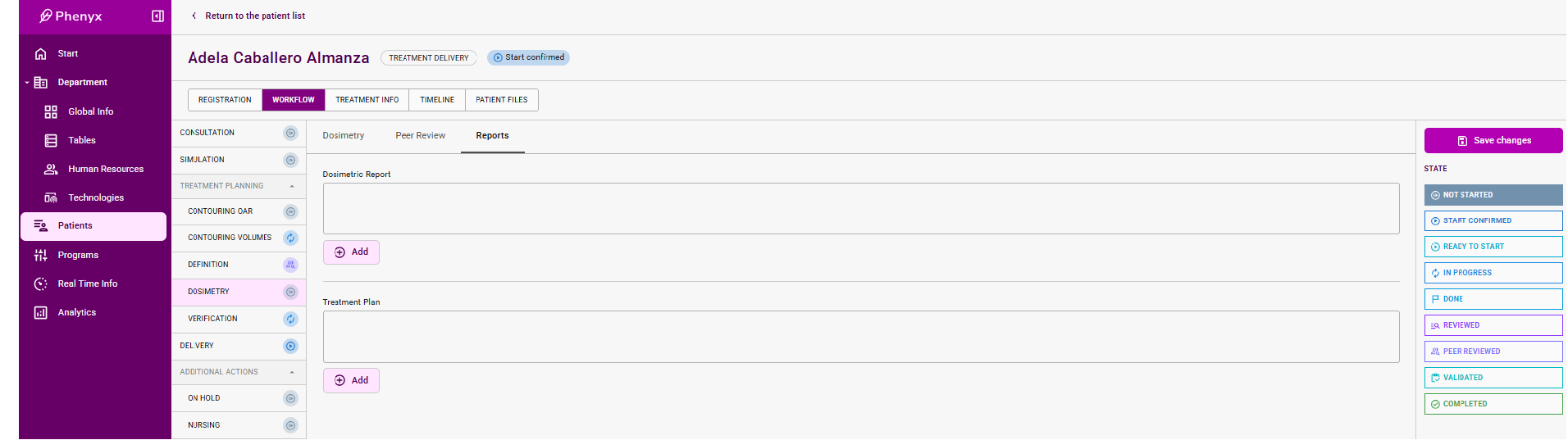
This stage is made up of three sections: Dosimetry, Peer Review, and Reports.
The first section is aimed at defining who and how will perform the dosimetry for the Confirmed LINAC.
The peer-review section is analog to the one in Definition.
The third section is a repository to upload reports regarding dosimetry (TBD).
Status definition
- Not started
- Ready To Start: Definition is in this status when all the contouring tasks have been completed. Thus, the update to this status might be done automatically when both Contouring_OaR and Contouring_Vol are completed.
- In Progress: Automatically when HHRR is assigned.
- Done: Manually by assigned resource.
- Reviewed Manually by MedPhys.
- Peer-Reviewed Manually by Peer-MedPhys.
- Validated Updating to this status is done manually when the responsible (MedPhys ??) finishes revision.
- Completed Updating automatically when Validated.
TODO section
- Remove Start Confirmed status.
- Define the process of choosing the HR that will perform the Peer Review and how to notify him/her.
- Define the process of choosing the HR that will perform the 2nd calculation and how to notify him/her.
- Decide if 2nd Calculation (Done) is added to the status list.
Verification
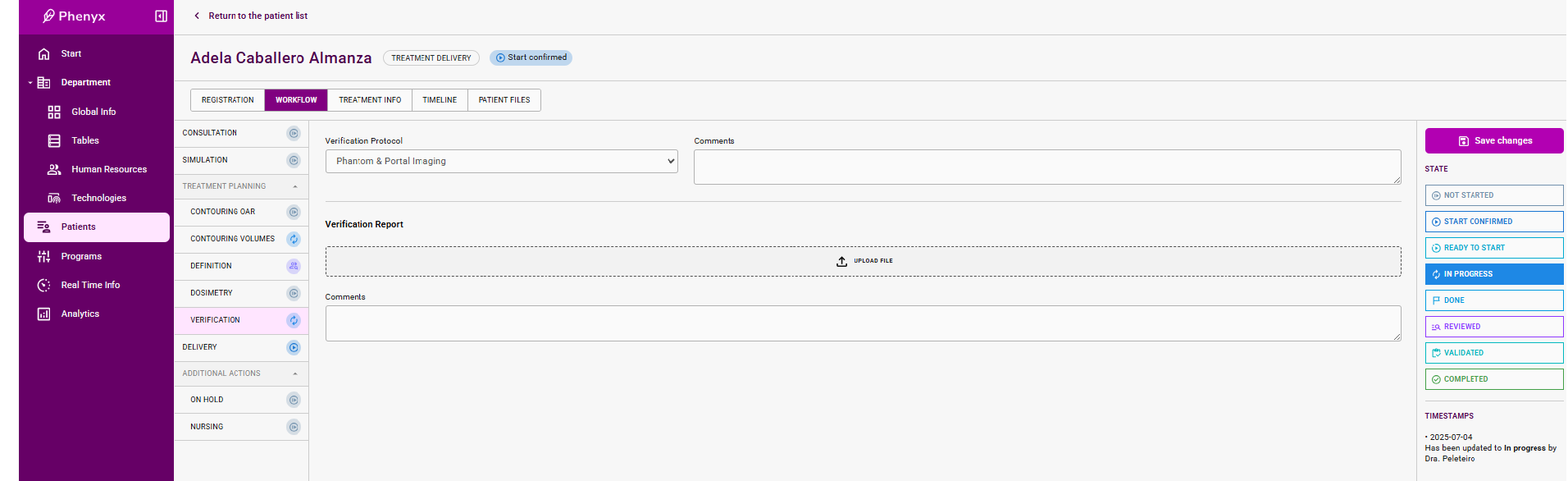
In this stage, the protocol for verification is chosen. Moreover, uploading of related files are allowed.
Status definition
- Not started
- Ready To Start: Verification is in this status when Dosimetry have been completed. Thus, the update to this status might be done automatically when Dosimetry is completed.
- In Progress: Manually.
- Done: Manually by assigned resource.
- Reviewed Manually by RadOnc / MedPhys.
- Validated Updating to this status is done manually when the responsible finishes revision.
- Completed Updating automatically when Validated.
TODO section
- Remove Start Confirmed status.
Treatment Delivery
- Tentative Treatment Starting Date: It is related with the Start Proposed status. It appears whenever the patient appears in a published program without confirmation of start.
- Confirmed Treatment Starting Date: It is related with the Start Confirmed status. It appears when the start is confirmed either in the RealTimeInfo calendar or in this screen.
- Additional Status Info
- Start Confirmed:
- Not Editable. Shows the info from the RealTimeInfo calendar.
- Weekly Assigned Days: Only when patient has a MultiWeek Fractionation Pattern.
- Interrupted:
- Interruption Start Date
- Estimated End Date
- Start Confirmed:
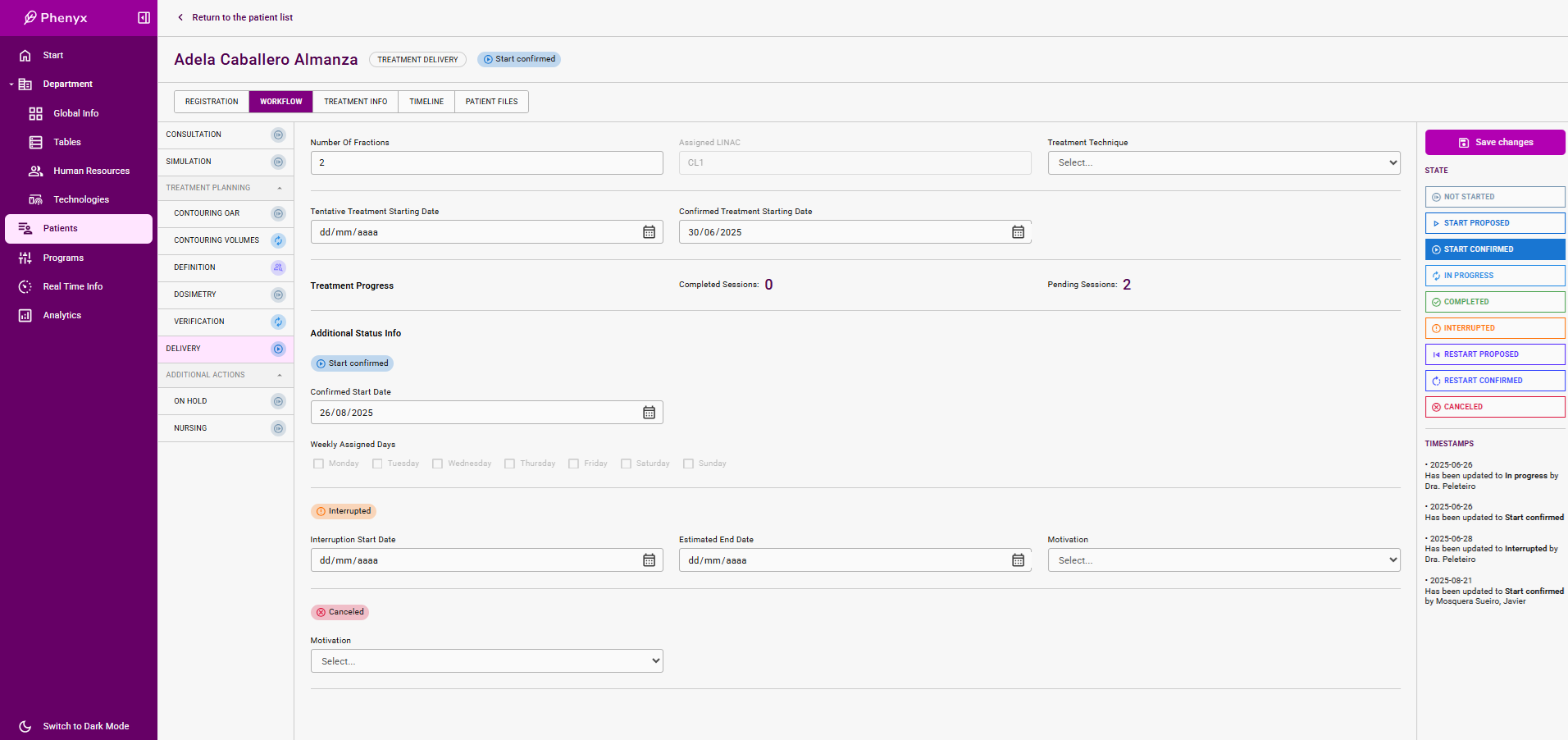
Status definition
- Not started
- Start Proposed: Verification is in this status when Dosimetry have been completed.
- Start Confirmed: Verification is in this status when Dosimetry have been completed.
- In Progress: Manually.
- Completed: Manually by assigned resource.
- Interrupted Manually by RadOnc / MedPhys.
- Canceled Updating to this status is done manually when the responsible finishes revision.
TODO section
- Remove ReStart Proposed status.
- Remove ReStart Confirmed status.
- Treatment Technique is not editable. Just copy the info from Definition.
- INTERRUPTED status management:
- When defining a time interval where the patient will not be available for treatment, it may happens two situations:
- Current date < interruption start date. In this case, status is not updated, and a Planned flag should appear next to the interrupted tag. Updating to Interrupted Status will be automatically performed in the corresponding date.
- Current date >= interruption start date. Status is automatically updated to Interrupted.
- When defining a time interval where the patient will not be available for treatment, it may happens two situations: